Step 1 Open the Files app.
Step 2 Go to On My iPad or On my iPhone
Step 3 Tap Minecraft tap Games tap com.mojang tap Minecraft Worlds
Step 4 Tap on any of the folders and to check what Worlds folder your looking at tap levelname or World_icon and the World_icon should show you the icon that Minecraft shows on your world.
Step 5 Go back to the Minecraft worlds folder and hold down on your Worlds file.
Step 6 after you hold down on it for a few seconds you should see a menu like this
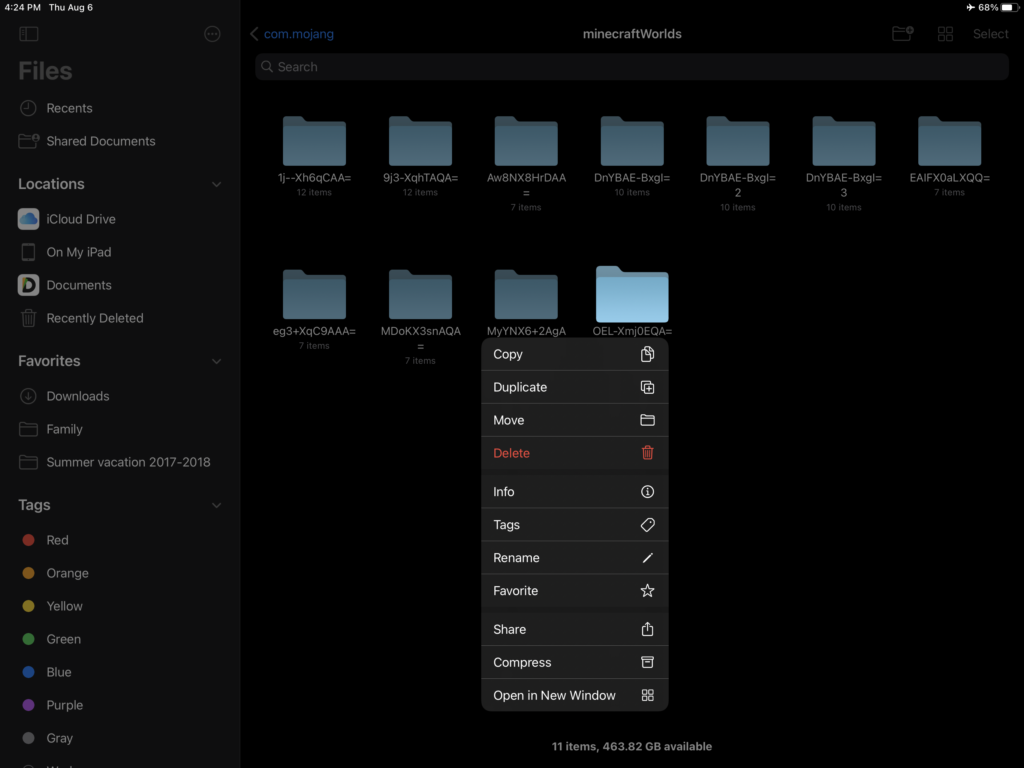
Click copy.
Step 7 Back out of On My iPhone or On My iPad and click iCloud
Step 8 After you’ve done that make or click on the folder you want to put your Minecraft World in.
Step 9 Once the file is done uploading to iCloud on the Device you want to put the world on go to the folder you put the World in and hold down on the worlds file and click copy.
Step 10 Go to On My iPhone or on my iPad and tap Minecraft, games, com.mojang, and then tap minecraftworlds
Step 11 Hold down anywhere on the screen in the place where the folders are if your on iPad and when you see a paste button pop up click it.
For more information Check out this video
Leave a Reply